TradingView Pine Script is a proprietary programming language developed by TradingView to allow traders to easily create custom indicators, signals, and strategies to be used with TradingView’s charts and website.

In this blog, I will cover the basics of Pine Script, a few simple examples, and how traders can leverage Build Alpha (no code software) to create their own Pine Script indicators and strategies.
Why should I use Pine Script?
Pine script is a simple to use scripting language geared towards traders with little to no programming experience. Traders must have an edge to compete in the markets and I am a staunch believer that edge must be quantified! If you cannot quantify your edge, then you simply do not have one.
Pine Script programming gives traders a simple way to code their ideas and see if an edge exists. Whether analyzing your own indicators or creating strategies for backtesting or something more advanced like Edge Ratio, traders must calculate their edge before live trading.
Pine Script is a good middle ground for a trader or analyst who wants to do some coding but does not want to learn a real programming language such as C++ or Python (or has not heard of Build Alpha), for example.
Resources to learn Pine Script
For those of you interested in learning Pine Script, the TradingView documentation is pretty good. I would recommend starting here: Pine Script™ v5 User Manual — Pine Script™ v5 User Manual v5 documentation (tradingview.com)
Please note these guys update Pine often so there are ever evolving changes, but it has seemed to stabilize over the past few releases.
Can Build Alpha generate Pine Scrit?
Yes. Build Alpha can generate TradingView Pine Script strategy code from its no-code strategy builder. You can paste the code directly into TradingView’s Pine Editor to visualize and trade the strategy. More below.
Pine Script Vs. Easy Language
Much like Pine Script, Easy Language is TradeStation’s proprietary programming language geared toward helping traders with no coding background put their indicators and strategies into code for proper testing.
TradeStation’s Easy Language is more than two decades old and very popular among systematic traders looking to automate trading logic. To read more: The Best Way to Properly Backtest on TradeStation (buildalpha.com)
Both programming languages come with many built-in keywords and functions for trading such as technical indicators, order management, and more making testing strategies and coding multiple indicators easier.
As of now, TradeStation’s Easy Language is more robust than Pine Script and the consensus favorite platform among Build Alpha traders. However, Pinescript programming is slowly catching up in terms of backtesting functionality and flexibility but not quite as full functioned yet (more examples later).
Code Comparison
On the left-hand side we have a custom indicator for the moving average function in Easy Language and on the right-hand side there is custom pine script to plot the moving average in TradingView. This is simply to show the full code syntax of each language side-by-side.
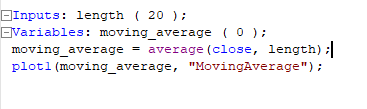
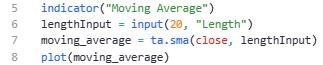
Both written scripts are very similar with input options or “inputs” (variable values) which can be controlled through the script settings GUI and optimized while strategy backtesting. Both ignore any default value and require saving before loading onto a chart to view the moving average line.
Please spare writing comments about removing unneeded variables and placing the function call directly in the plot statement, etc. I wanted to show the cleanest possible code for demonstration purposes.
SPY TradingView Example
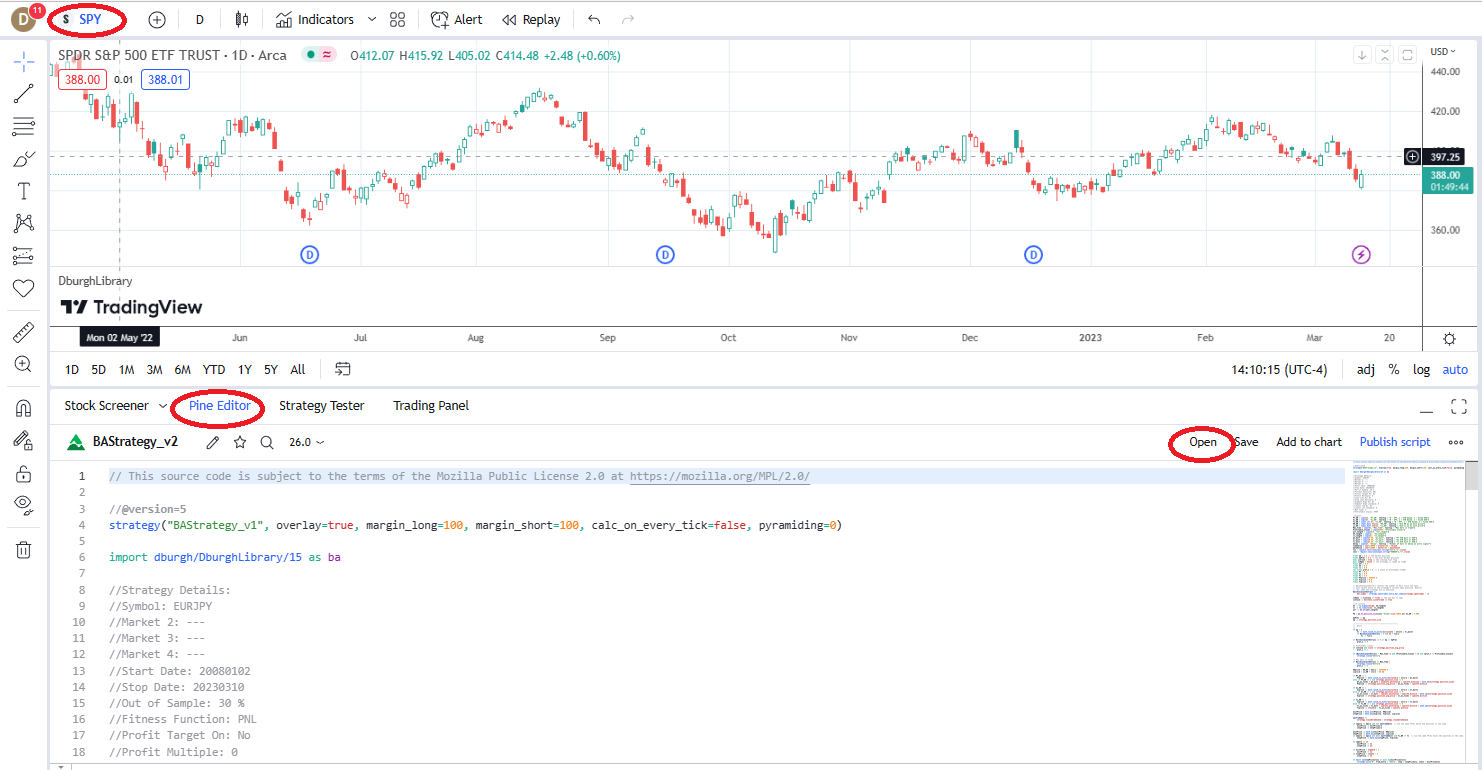
A quick primer on TradingView will serve all traders at this point. First, let’s open a page or chart of SPY – the most popular ETF in all markets – and take a look at what we see. Change the symbol in the upper left corner.
Next, open the Pine Script editor to create a new indicator or strategy. Select the Pine Editor and then hit Open. This is where creating custom indicators and all the code lives.
Pine Script Example
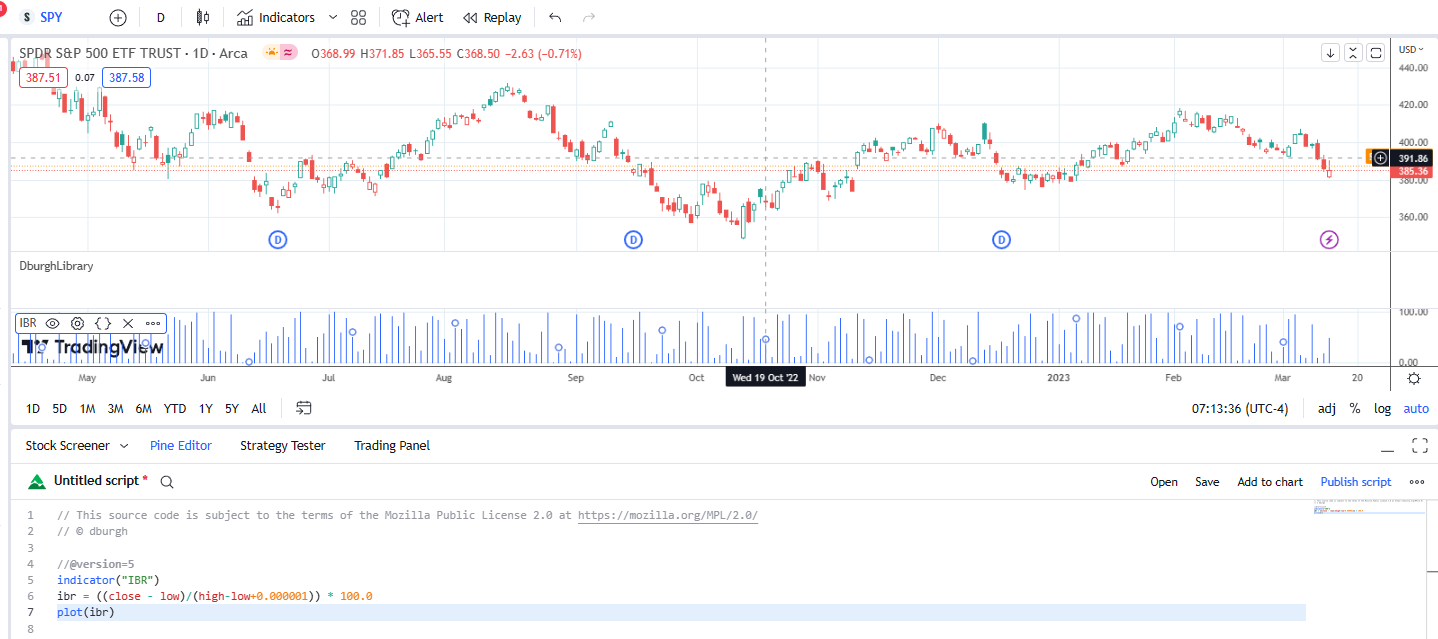
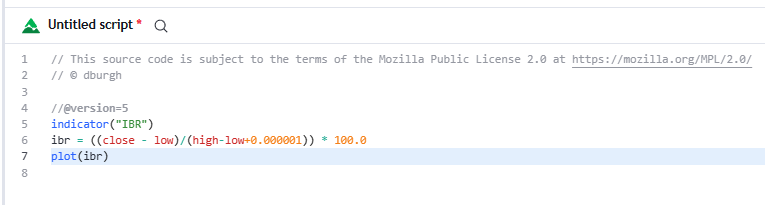
indicator("IBR")
ibr = ((close - low)/(high - low + 0.000001)) * 100.0
plot(ibr)
Above (and below) is simple Pine Script code for a custom indicator that plots the Internal Bar Rank or the Internal Bar Strength. This is the IBR signal in Build Alpha’s built-in library. It simply plots the close in relation to the bar’s high-low range.
An IBR reading of 25% means the close was in the bottom 25 percent of the bar’s range (weak close). A reading of 90% would mean the close was near the high of the day (strong close).
TradingView Backtesting (quick note)
TradingView is much more than a charting platform as a free tradingview account gets you access to new features like technical analysis, price data, open-source scripts, the pine script language, built-in tradingview indicators, and the ability to backtest trading strategies.
It is important to note that TradingView’s backtesting is in its infancy and does not support all functionality that other platforms dedicated to backtesting (like Build Alpha, TradeStation, etc.) do.
This blog’s intentions are not to highlight the pitfalls or shortcomings of TradingView but to present it as an alternative for quantitative traders (often with a smaller budget or looking to trade across borders).
Build Alpha – Strategy Building with No Code
Build Alpha is no code algorithmic trading software designed to empower quant traders with fast prototyping and strategy testing for any market, timeframe or bar type. Build Alpha can backtest strategies and has its own signal generators (genetic algorithm) that builds the best strategies for you given your inputs. It was designed to be a huge time saver for those with big research to do lists (myself primarily).
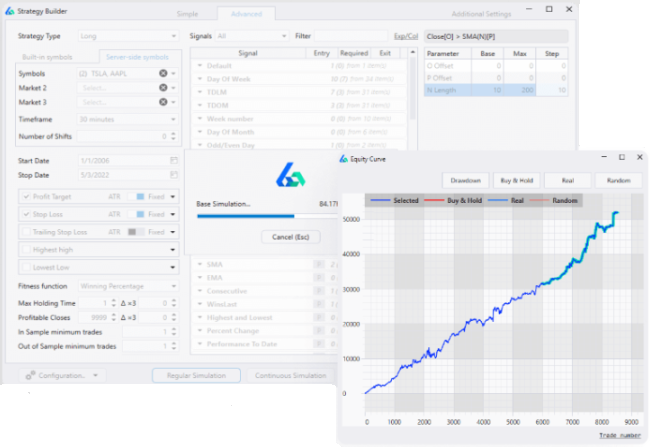
After Build Alpha generates the best performing strategies based on your inputs, the trader can click to highlight any strategy and then press one button to generate fully automate-able code for a ton of platforms.
I am happy to announce that Trading View’s Pine Script is newly added to the latest Build Alpha release. Below I will cover a full example from setting up Build Alpha, generating the Pine Script code, and ultimately putting the generated code into Trading View to view the performance/compared to Build Alpha.
Create Custom Indicators with no programming language
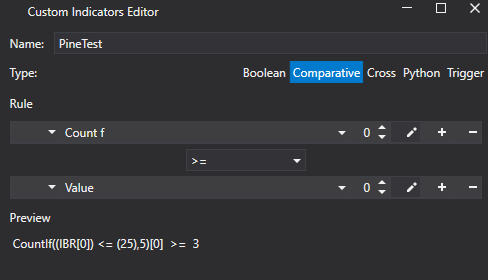
To highlight another new feature in the latest Build Alpha release, we will create a custom indicator using the new no-code editor in BA (dark mode). Let’s create a signal that only trades if 3 or more of the last 5 bars have closed in the bottom 25% of their respective range (yes, the IBR indicator)!
Below is how it looks in the Custom Indicator Editor in Build Alpha. Click the pencil to edit the condition inside the ‘Count F’ function.
Generate Algo Trading Strategy with no code
Next, let’s use the custom signal above to generate a trading strategy in BA. I wrote more about automating trading strategies with no code in this link for those interested: Automate with No Code
First, type in PineTest to the signal search bar and select it for Entry. I am going to require it as well (this forces the software to use it in every strategy it generates).
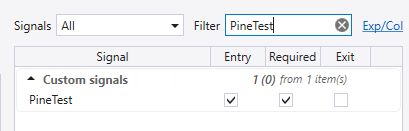
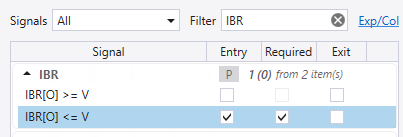
Next, let’s add the IBR signal by typing that into the signal bar and selecting it for Entry. I will not edit the ‘V’ value and will use the default signal that IBR is less than or equal to 25% (settings not pictured).
Finally, let’s add a filter that the current price must be above its Simple Moving Average. Type SMA into the search filter and select Close less than SMA as an Entry signal. Additionally, let’s let Build Alpha find the best moving average length to use and give it a range from 10 to 250 stepping by 5.
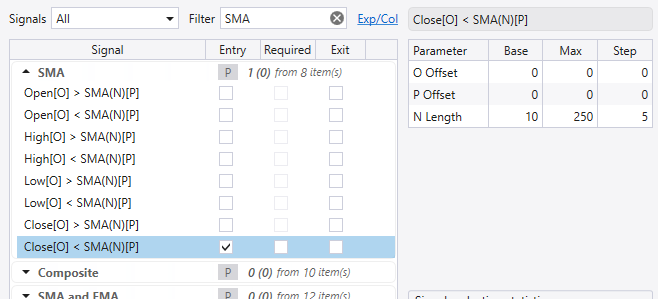
Please note there are other SMA signal categories for crossovers, moving average slopes, etc.
I have set max entry rules to three, so we always have our two required rules plus one of the SMA variations in every strategy the software builds. The only exit is a one day hold (no stop loss for this test) and will run on SPY for demonstration purposes.
Generate TradingView Pine Script
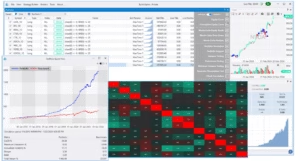
After we hit Simulate, we can view all the variations to find the best performing SMA filter plus our two rules (IBR and IBR count).
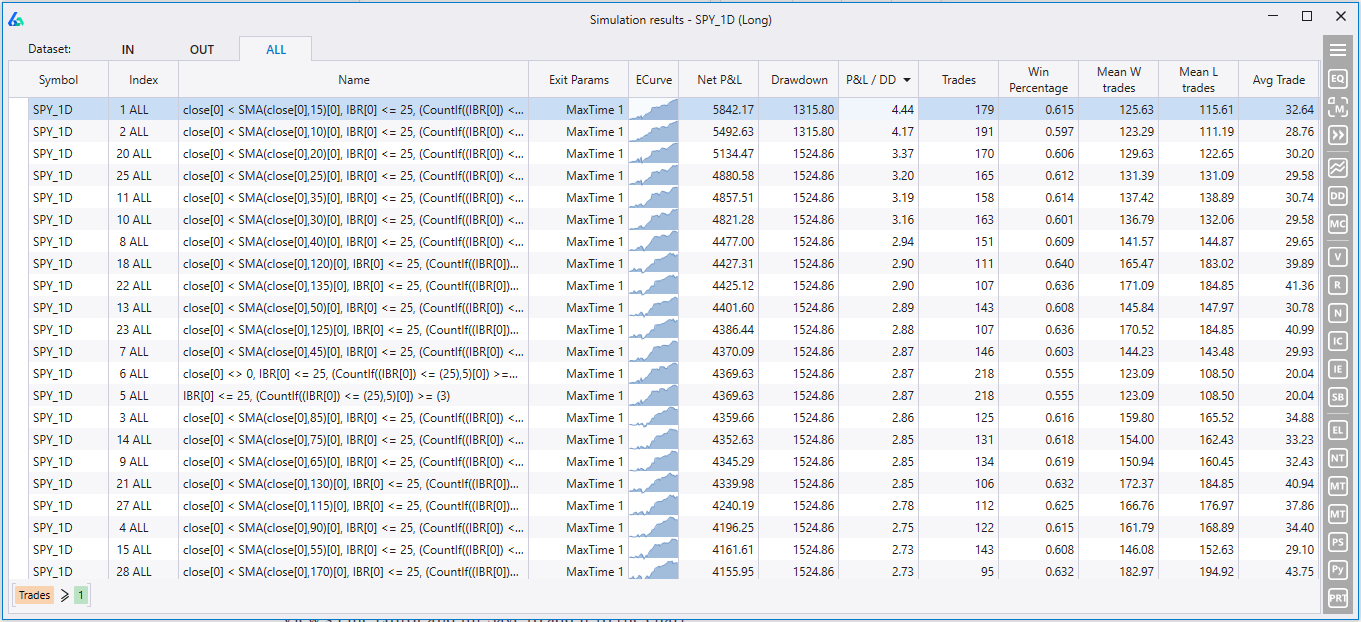
Click a strategy to highlight then click the Generate Pine Script Code button in the lower right. I’ve expanded them for the below picture, but they are collapsed (but still clickable) in the above photo.
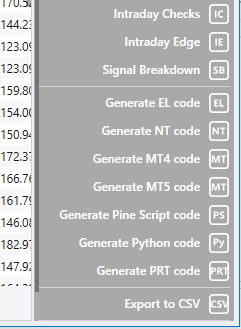
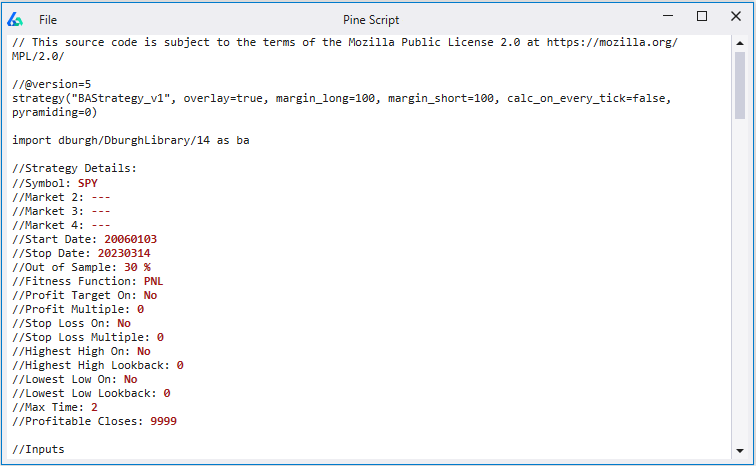
Build Alpha will pop open a new window with full code that can be copy and pasted into Trading View’s Pine Editor including code for the custom indicator. Save and then place on a SPY chart to view.
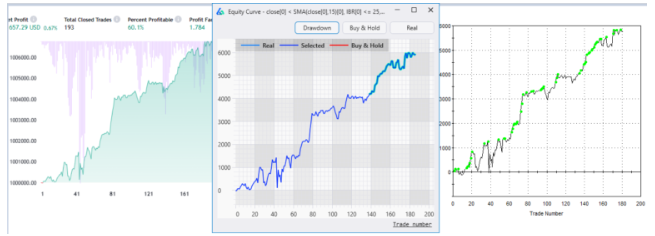
Below you can see the strategy’s equity curve on TradingView, Build Alpha, and TradeStation. TradingView is still in its infancy in regards to data quality, backtesting ability, and accuracy but I felt it was a close enough match that it was time to support TradingView.
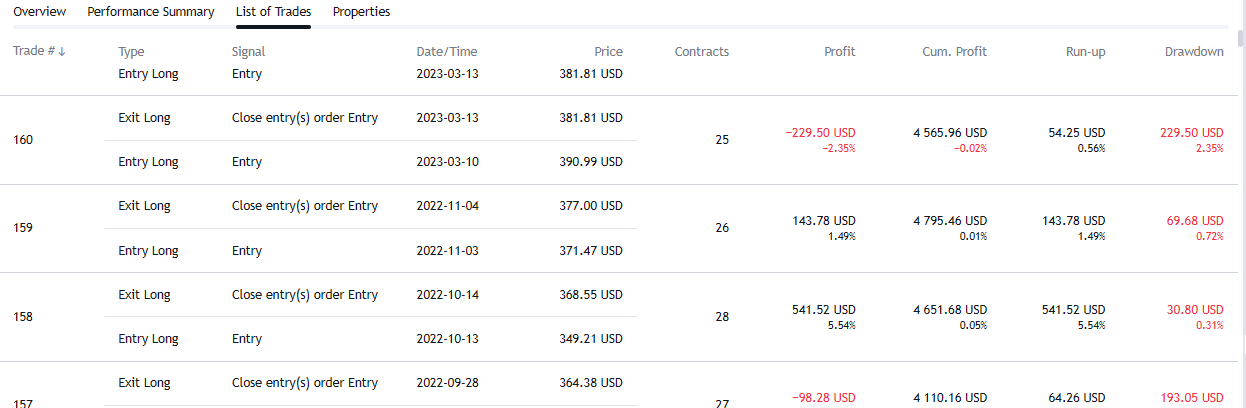
The more recent underlying data seems more accurate in TradingView. Here is a small sample of the last four trades to show an exact match in trade size, entry, exit, P&L!

TradingView Paper Trading
TradingView does support paper trading for users looking to build and incubate tons of strategies before going live. Once the generated pine script code is loaded on a Trading View chart you can watch the trading strategy on live price data on screen similar to a paper trading account without doing anything.
Build Alpha’s latest upgrade also has the ability to monitor strategies live and output real-time alerts, issue position updates and update P&Ls. Simply right-click on a strategy to save it to your BA portfolio and then enable it for Live Simulation.
Takeaways
-
Pine Script is TradingView’s proprietary programming language
-
Pine Script has many built-in trading related keywords and functions
-
Pine Script and Easy Language are very similar for those familiar with TradeStation
-
Build Alpha generates both TradeStation Easy Language and TradingView Pine Script code at the click of a button
-
Pine Script and TradingView’s backtesting accuracy is still in its infancy but coming along quickly
Summary
Trading View has taken over the trading world in the past few years with its easy to use web based charting platform. The introduction of their proprietary programming language, Pine Script, is proving to be a great resource for those traders understanding the need to quantify their ideas and looking for automation. Build Alpha now generates complete code for Pine Script for those that do not want to learn to program but still want to quantify their ideas, build robust strategies, and take advantage of TradingView.
Video example below of Pine Script code generation and matching results with Build Alpha: